
Want different food this week? Or a different kitchen for good? NoshUp handles those two wishes in two different ways.
- Trying a cuisine for a week is free. It works on any plan, and it never changes your saved profile.
- Switching your saved cuisine is a Pro feature. You do it in Settings, and it shapes the plans you generate from then on.
Here is how both work, starting with what a cuisine actually does to your meal ideas.
What a cultural module is
NoshUp calls your household's cuisine its Cultural module. It sets the cuisine your meal ideas are built around. There are eight to choose from:
- Everyday Variety: "Keep each week varied with approachable meals inspired by a range of cuisines - no single cuisine restriction."
- North American: "Canadian and U.S. home cooking with common pantry staples, proteins, produce, and weeknight meals."
- Indian: "Dal-sabji-roti planning, atta and toor dal staples, regional spice tolerance."
- Italian: "Pasta, tomato pantry, olive oil, cheeses, herbs, and Italian-style weeknight meals."
- East Asian: "Rice, noodles, sauces, tofu, aromatics, and Chinese/Japanese/Korean-inspired home cooking."
- Mexican: "Tortillas, beans, rice, chiles, salsa, lime, herbs, and Mexican/Tex-Mex staples."
- Mediterranean: "Olive oil, legumes, yogurt, herbs, grains, and produce-forward Mediterranean meals."
- French: "Butter, gruyere, shallots, wine-based sauces, and bistro-style French home cooking."
Your module decides which dishes NoshUp can suggest. With a specific cuisine, the pool holds that cuisine's dishes, plus Everyday Variety dishes, plus the recipes your household has saved. So picking Italian does not mean pasta every night. It means Italian dishes lead, with approachable everyday meals and your own favourites in the mix.
Everyday Variety works differently as a saved choice. It draws from every cuisine, so your week can wander from one kitchen to another.
Cooking for a vegetarian household? The Indian vegetarian meal planning guide goes deeper on that pairing.
Picking a cuisine when you sign up
You first meet the cuisine choice in onboarding, on step 3: Food preferences. It asks you to "Pick a cultural module and any allergies or dietary needs."
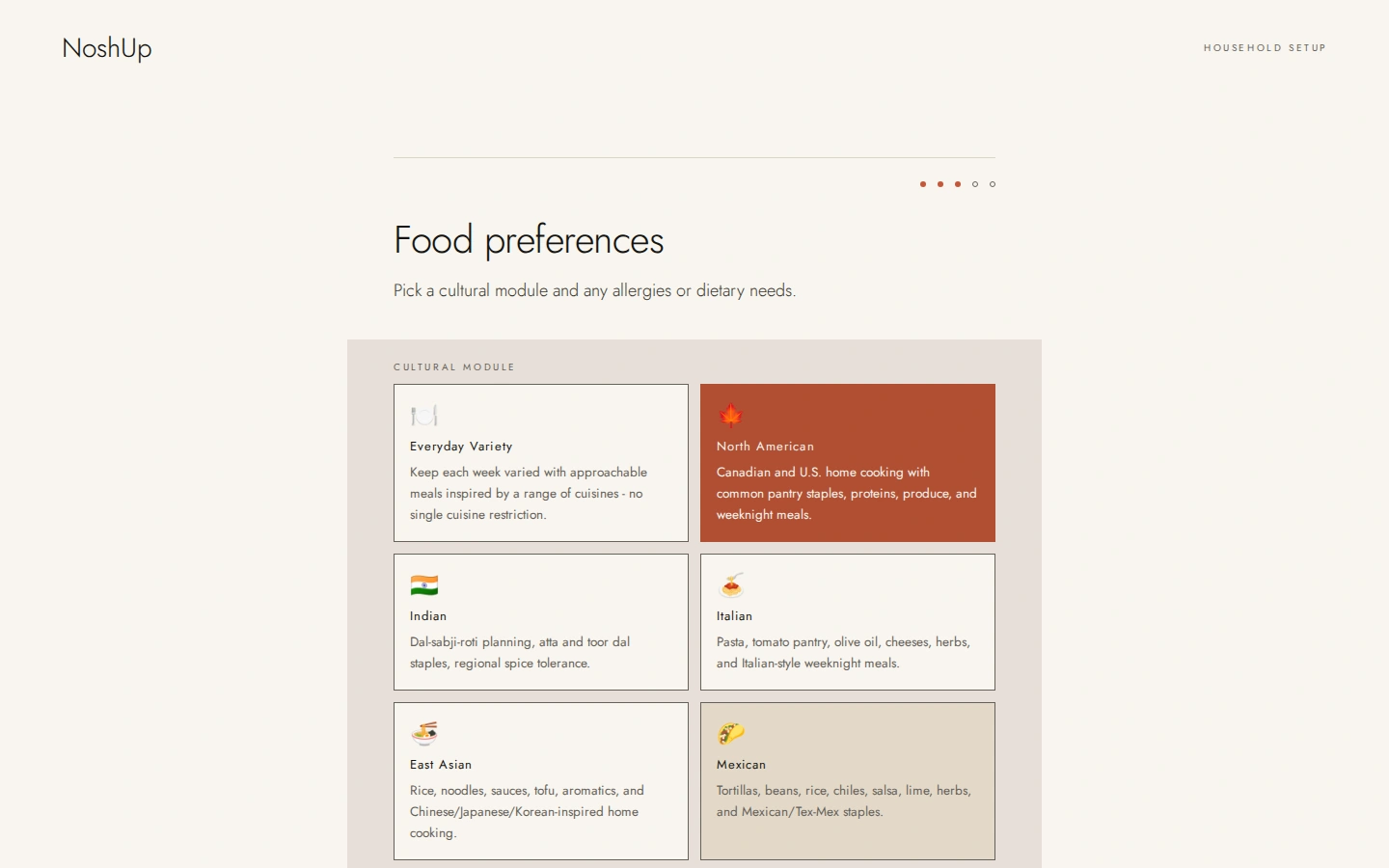
Choose the card that fits how your household cooks. Not sure yet? The button Use North American meals skips the choice and sets your household to North American.
If you would rather have a mix of every cuisine, pick the Everyday Variety card yourself. It is not chosen for you.
Allergies and dietary needs live on the same step. The avoided ingredients and dietary preferences guide covers those settings.
Try a cuisine for a week (free)
This is the one to reach for when you just want a change. It works on the free plan and on Pro, and your saved cuisine stays exactly as it was.
- Open Meals.
- Switch to the Week view if you are not on it yet. Meals starts on the Day view, and Regenerate week lives on the Week view.
- Open Filters & Tools, then find the Try a cuisine section.
- Pick a cuisine from the Cuisine dropdown. You get the same eight options as above.
- Choose Regenerate week, then confirm.
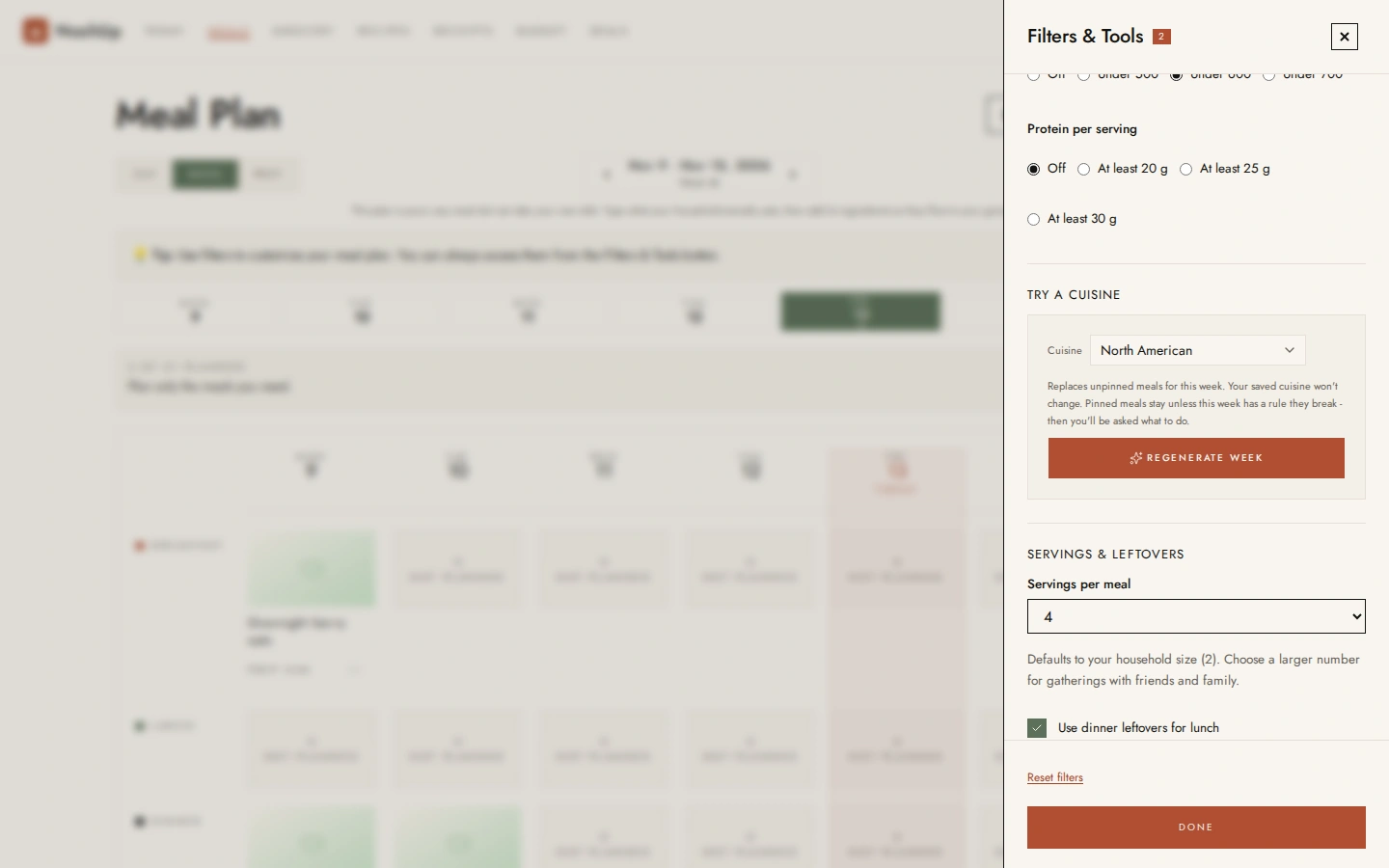
The helper text under the dropdown spells out what happens: "Replaces unpinned meals for this week. Your saved cuisine won't change. Pinned meals stay unless this week has a rule they break - then you'll be asked what to do."
So your pinned favourites stay in place, even a pin that comes from another cuisine. Suggested meals that are not pinned get replaced with ideas from the cuisine you picked. The change belongs to this week's plan only; your saved cuisine stays the same.
Only want one night of something new? The panel can also preview a meal from your chosen cuisine and apply it to a single day's slot, instead of regenerating the whole week.
Want more detail on pinning, filling the rest of a week, or regenerating selected dates? See planning your week of meals with NoshUp.
Switch your saved cuisine (Pro)
Liked that week of Mexican so much you want it every week? Changing your household's saved cuisine is a Pro feature.
Open Settings and scroll to the Cultural module section. You will see all eight options.

On the free plan, the cuisine options are disabled. The section shows a Pro feature link with a lock icon, and this note: "Upgrading to Pro lets you switch cuisines any time. Changes apply to your next generated meal plan - pinned meals are always kept, or you can regenerate now for suggestions from the new cuisine right away."
On Pro, pick the new cuisine, then select Save changes. The saved cuisine becomes your household's default. Two things to know:
- It applies to your next generated plan. The week you already have stays as it is until you generate again.
- Pinned meals carry over when they fit. A pin from the new cuisine's pool stays on your plans. A pinned dish from far outside it can drop off the next generated plan, so check your week after a switch and re-pin anything you want back. (A week-long Try a cuisine regenerate keeps cross-cuisine pins; a saved-cuisine switch does not.)
Want the new cuisine right now? Regenerate the current week after you change it, and you will get suggestions from the new cuisine straight away.
Pro's standard pricing is CA$4.99 a month or CA$49.99 a year. Prices are in Canadian dollars. See Pricing for the current details.
Which one do you need?
Ask yourself one question: is this a craving, or a change?
- A craving, or a curious week. Use Try a cuisine on Meals. It is free, it covers this week, and your saved profile does not move.
- A lasting change. Switch the Cultural module in Settings. That is a Pro feature, and it shapes every plan you generate afterwards.
Not sure yet? Try the cuisine for a week first. If everyone at the table is happy, you will know whether to make it permanent.