
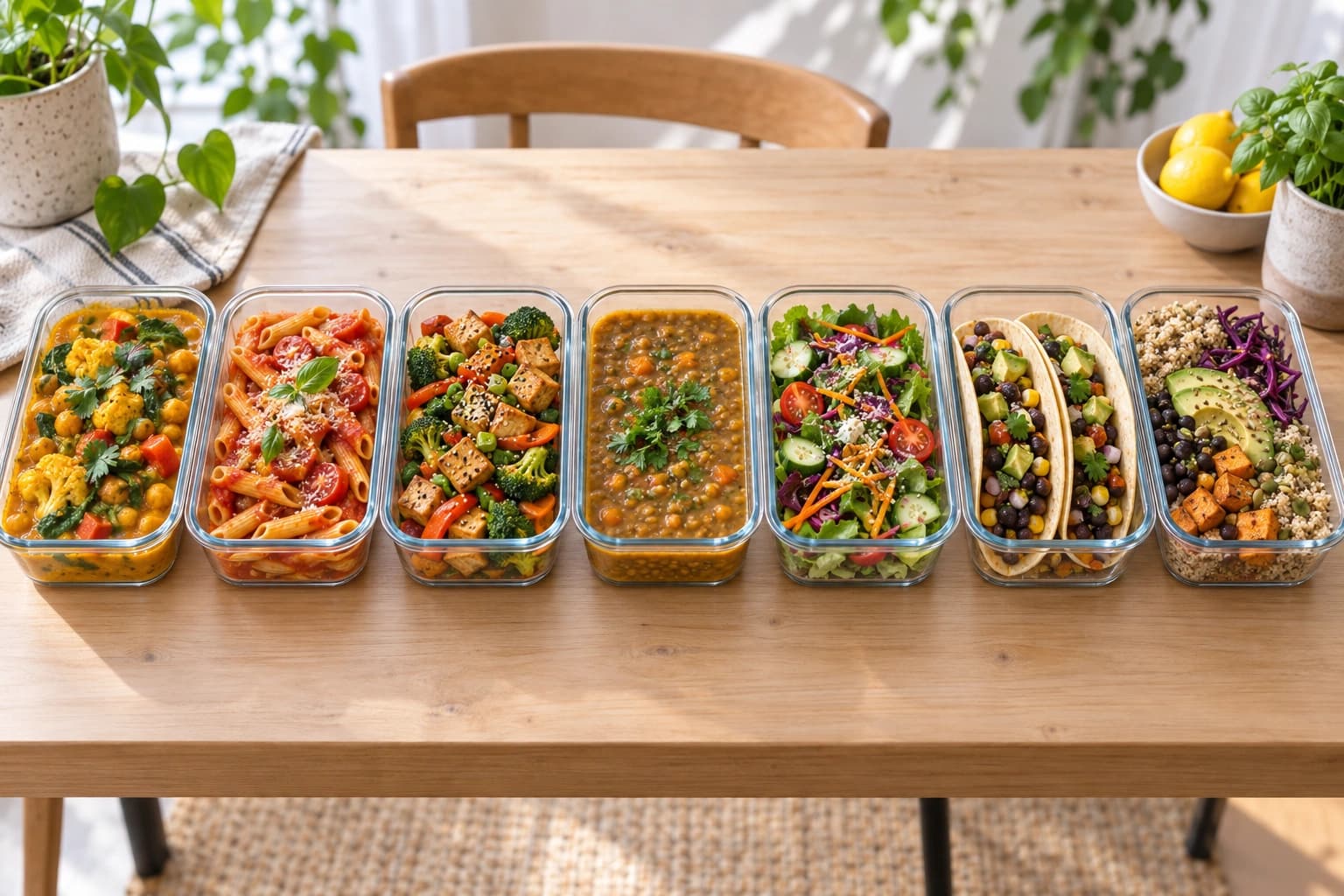
Breakfast is sorted, Wednesday is a night out, and nobody wants to cook seven different dinners. Your meal plan should work around that.
Start with the meals you actually need. Then keep the favourites, make room for leftovers, and change the rest as the week unfolds.
Plan a week
- Open Meals and use the arrows to choose the week.
- Choose Generate, then Whole week to select all seven days.
- Tick the meal types you want and choose Generate selected dates.
Already have a plan? When your week has open days, Fill the rest of this week opens the same choices. Review your dates before confirming: filling in can replace existing suggestions on the dates you keep selected.
Only want dinners planned?
Open Filters & Tools, then tick only Dinner under Meals to plan. Or tick your own mix of breakfast, lunch, and dinner. You do not need to plan every meal.
When changing an existing plan, read the summary before confirming. Removing a meal type can remove its suggested meals on the selected dates. Meals you added yourself stay unless you choose to replace them too.
The person who manages the household can, under Household defaults at the bottom of Filters & Tools, tick Save meal types, servings and leftovers as household defaults to remember the family's usual choices for future plans.
Plan the remaining days
- On the Meals page, choose Fill the rest of this week when your week has open days.
- Review the ticked dates. For the current week, the ticked dates include today.
- Untick any date whose meals you want to keep, even if it is later this week.
- Choose the meal types you need. If you see Also replace the meal(s) I added myself, leave it unchecked. Then choose Regenerate selected dates.
Meals, ratings, and skipped meals on unticked dates stay unchanged. Suggested meals on ticked dates can be replaced, even if you were only hoping to fill the gaps. To fill just one space, use Add meal or Add from recipes instead.
If leftovers connect a meal you want to change with a day you are keeping, NoshUp asks you to review the extra dates before proceeding. Cancel if you do not want those days included.
Leaving room for a night out
Open Wednesday's dinner or its More actions menu and choose Skip/remove this meal. That leaves the space marked as skipped instead of showing a dinner you will not cook.
Changed your mind? Choose Undo skip, then Add meal. Undoing a skip does not bring back the old dish automatically.
If another meal uses leftovers from the dinner you are removing, NoshUp asks whether to skip those meals too or keep their recipes as separate meals to cook. You can also cancel. Check your grocery list afterwards: an existing list is not automatically rewritten by this change.
Repeat a family favourite
Have a favourite Friday dinner? Open it and use the Pin meal button. When you generate that weekday and meal type again, NoshUp keeps the pinned choice, including in future weeks. Unpin it when you want something different.
A pin does not fill dates or meal types you have not chosen to generate. If the meal conflicts with your weekly goal, you will be asked to review it.
Adding a meal yourself is different: it belongs to that particular date and does not repeat automatically. Leave Also replace the meal(s) I added myself unchecked when regenerating to preserve meals you added yourself.
Cook once, eat twice
For a one-off batch, open a meal and choose Cook double. On a later meal, choose Leftovers from… and select that earlier batch. You can adjust Final portions inside the recipe if you need more or fewer portions, then choose Save.
Choose Remove leftover link to make the later meal a separate dish to cook rather than leftovers from the earlier meal.
After changing portions or leftovers, review quantities on any grocery list you already created.
Reuse your lunch routine
Did cooking extra dinner for the next day's lunch work well last week? Use that routine for this week, with portions that fit your family.
- Open Filters & Tools at the top of Meals, then scroll to Servings & Leftovers.
- Turn on Use dinner leftovers for lunch.
- Choose Weekdays or All days.
- Set Servings per meal to the number of servings each generated meal should make. It starts at the number your plan or saved household defaults already use, or your household size if you haven't set one. Larger numbers are there for gatherings.
- Review your choices, then choose Done to generate with them. If any saved choices conflict, Review conflicts opens the details first.
The person who manages your household can also tick Save meal types, servings and leftovers as household defaults under Household defaults at the bottom of the drawer, to remember the routine and portion count for future weeks. Load household defaults brings those saved choices into the form for you to review and apply.
Lunch uses the previous day's dinner where there is a suitable meal with enough portions. Monday may need a lunch you choose yourself. Include lunch in your meal types if you want it planned; this setting will not add lunches to a dinners-only plan. A pinned lunch takes priority over automatic leftovers.
Applying these choices can regenerate meals and replace suggestions. Check your plan afterwards, and review quantities on any grocery list you already created.
Set a theme or calorie goal
Open Filters & Tools, then Constraints, to choose a Theme, such as soups or stews and curries, or set Calories per serving, such as Under 600. This is a limit for each serving, not a daily calorie budget, and these choices apply only to the week you are planning.
NoshUp checks the available recipes and flags saved meals that need your attention. Open a Needs review note for details and review those choices before applying. If there are not enough matching options, loosen the goal or turn it off rather than expecting every meal to fit. Calorie limits may be unavailable when the recipes do not have verified calorie information. Calories are estimates, not medical advice.
Changing the weekly theme, calorie limit, or Servings per meal requires reviewing the whole week when other dates already have meals you are keeping. Do not switch to the whole week unless you are ready to review those meals too.
Change a meal
Need a different dish tonight? Open its recipe and choose Swap meal. Pick a suggestion, or type your family's own dish and add its ingredients for the grocery list. The plan is there to help, not to lock you in.
See your week your way
Use Day to focus on one day's meals, Week to see the full menu, or Prep to plan cooking ahead.
Use the arrows on Meals to browse weeks. You can open recipes from past weeks, but you cannot edit those weeks.