
From the NoshUp team
How to install the NoshUp web app on your device
Last updated
To install the NoshUp web app, open noshup.ca in your browser and choose Install or Add to Home Screen, then confirm. On a Mac using Safari, choose File > Add to Dock instead. The exact option depends on your browser and device; follow the matching steps below.
This guide covers iPhone, iPad, Android, Windows, Mac and Linux, with instructions for Chrome, Edge, Firefox, Safari and Samsung Internet where supported. You are adding a web app (PWA) or a Home screen shortcut, not a native app download.
Start at noshup.ca in your browser. No APK file or app-store download is needed. Do not bypass Play Protect or other security warnings. Cancel unexpected download prompts and return to the website.
A web app can open in its own window; a shortcut may open a browser tab. You use the same NoshUp account, though you may need to sign in again. Keep an internet connection for planning, syncing and up-to-date deals. Browser labels vary by version. Screenshots show examples, not every device.
Jump to the instructions for your browser:
- Desktop and laptop: Chrome, Edge, Firefox, Safari
- Phones and tablets: Chrome, Edge, Firefox, Safari, Samsung Internet
Desktop and laptop
Chrome
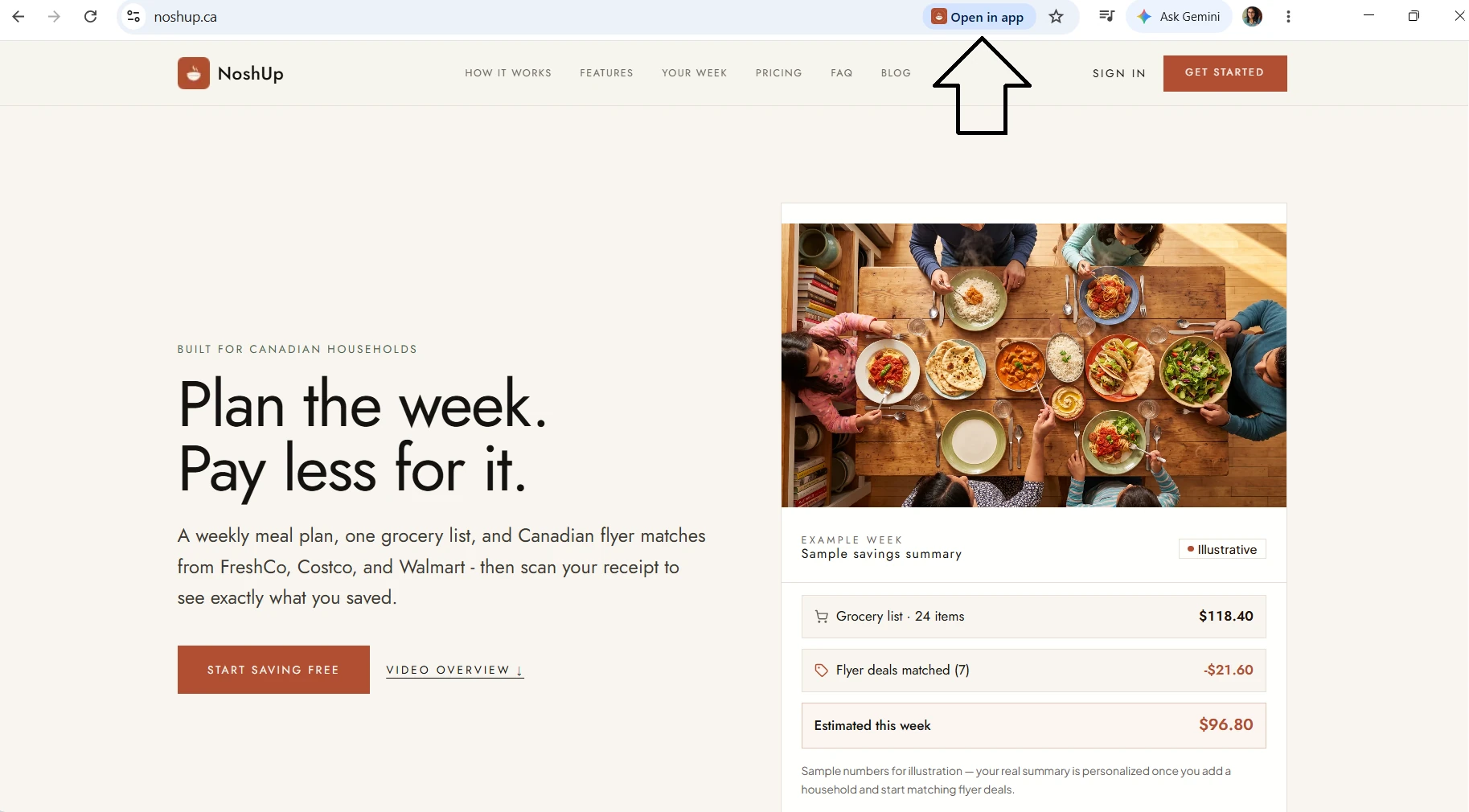
On Windows, macOS and Linux, Chrome can install NoshUp as a web app.
- Open https://noshup.ca in a regular Chrome tab.
- Click the install icon on the right of the address bar. Alternatively, open the three-dot menu, then Cast, save, and share, then Install page as app.
- Confirm the name NoshUp and choose Install. Open it from your computer's app launcher or shortcut.
If Chrome says Open in app, NoshUp is already installed. Select that button to launch it. Menu wording varies by Chrome version.
Edge
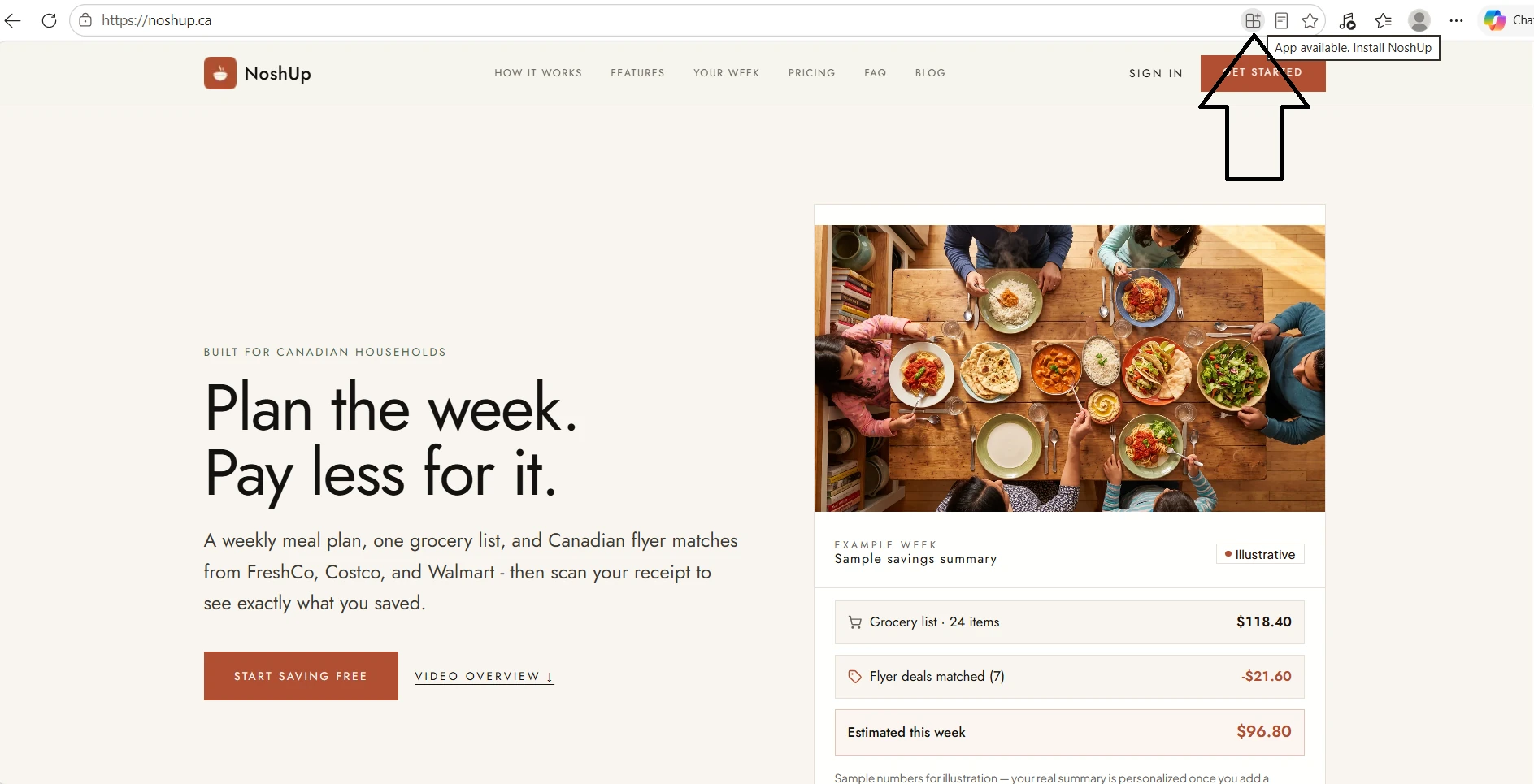
On Windows, macOS and Linux, Edge can open NoshUp in its own web-app window.
- Open https://noshup.ca in Microsoft Edge.
- Select the App available / Install NoshUp icon in the address bar. Or open Settings and more, then More tools, Apps, and Install this site as an app. Some versions show Apps directly in the menu.
- Choose Install, then select any optional pin or shortcut options you want. Open NoshUp from that shortcut or from edge://apps.
Firefox
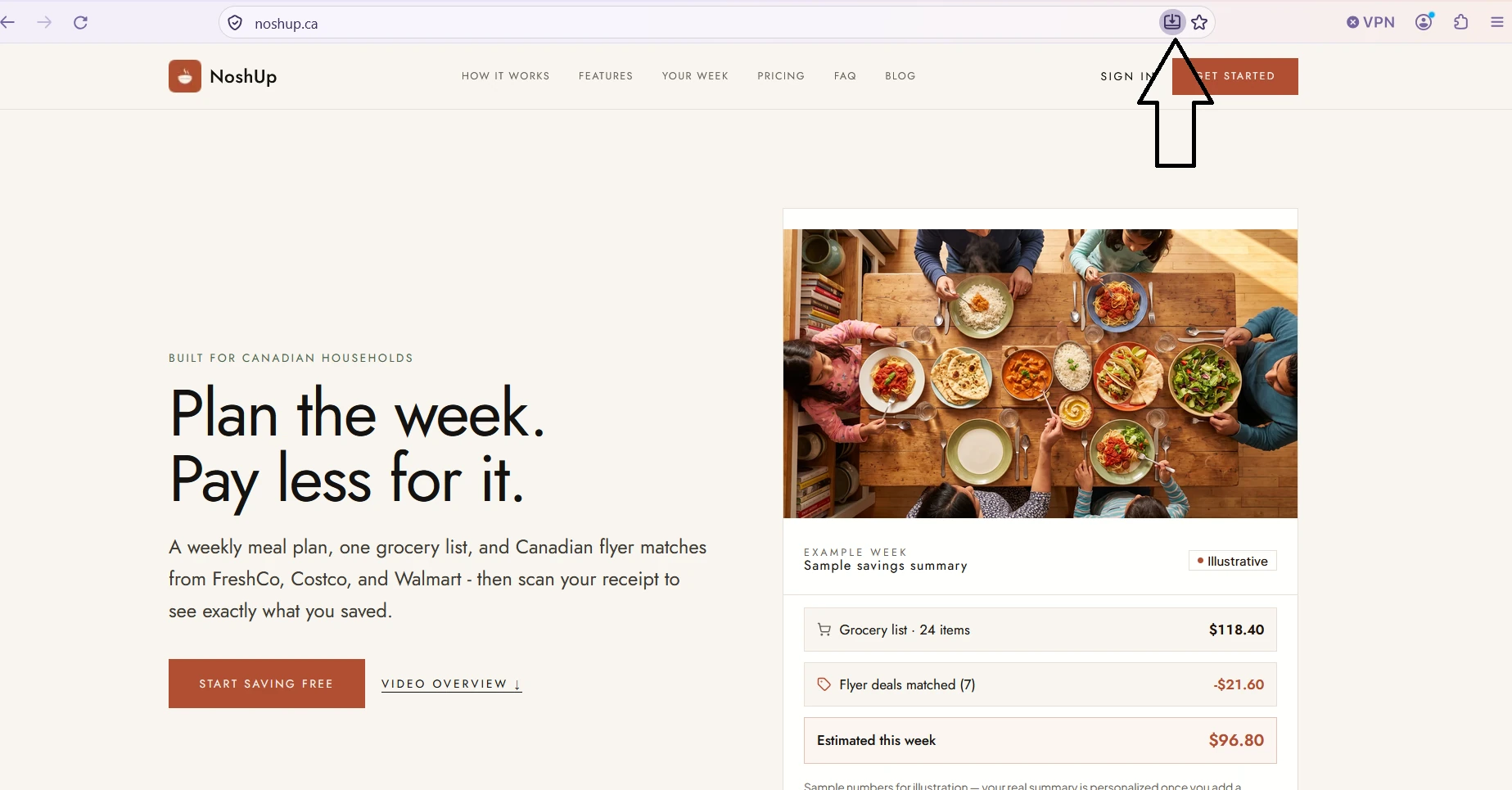
Firefox web apps are supported on Windows starting with Firefox 143 (Microsoft Store installations need 150 or later). The standard feature is not available on macOS or Linux.
- On a supported Windows installation, open https://noshup.ca in Firefox.
- Select the web-app icon in the address bar, labelled Add tab to taskbar.
- Follow Firefox's prompt to open the site as a web app and confirm taskbar pinning if offered. Launch NoshUp from the taskbar or Start menu.
If the icon is missing, update Firefox. On an unsupported version or platform, bookmark NoshUp instead, or use Chrome or Edge. A bookmark opens a browser tab, not a separate app.
Safari
On a Mac with macOS Sonoma 14 or later, Safari can add NoshUp to the Dock as a web app. Older macOS versions can use a bookmark instead.
- Open https://noshup.ca in Safari on your Mac.
- In the menu bar, choose File, then Add to Dock. You can also find Add to Dock in Safari's Share menu.
- Name the app NoshUp and choose Add. Open NoshUp from the Dock, Spotlight or your home folder's Applications folder.
Safari is not a current supported browser on Windows or Linux. On those platforms use another browser in this guide.
Illustration, not a screenshot: Safari on Mac > File > Add to Dock > NoshUp > Add > Open from the Dock.
Phones and tablets
Chrome
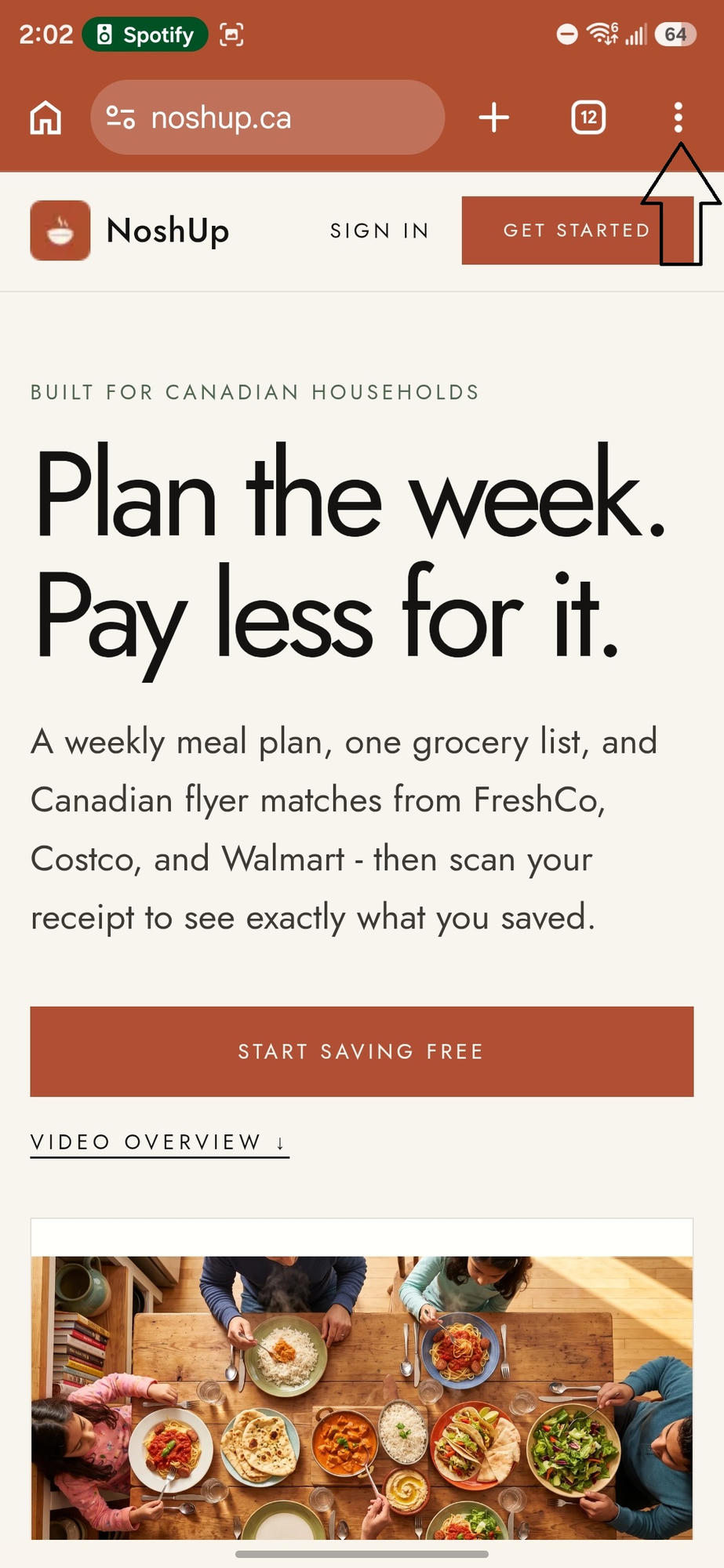
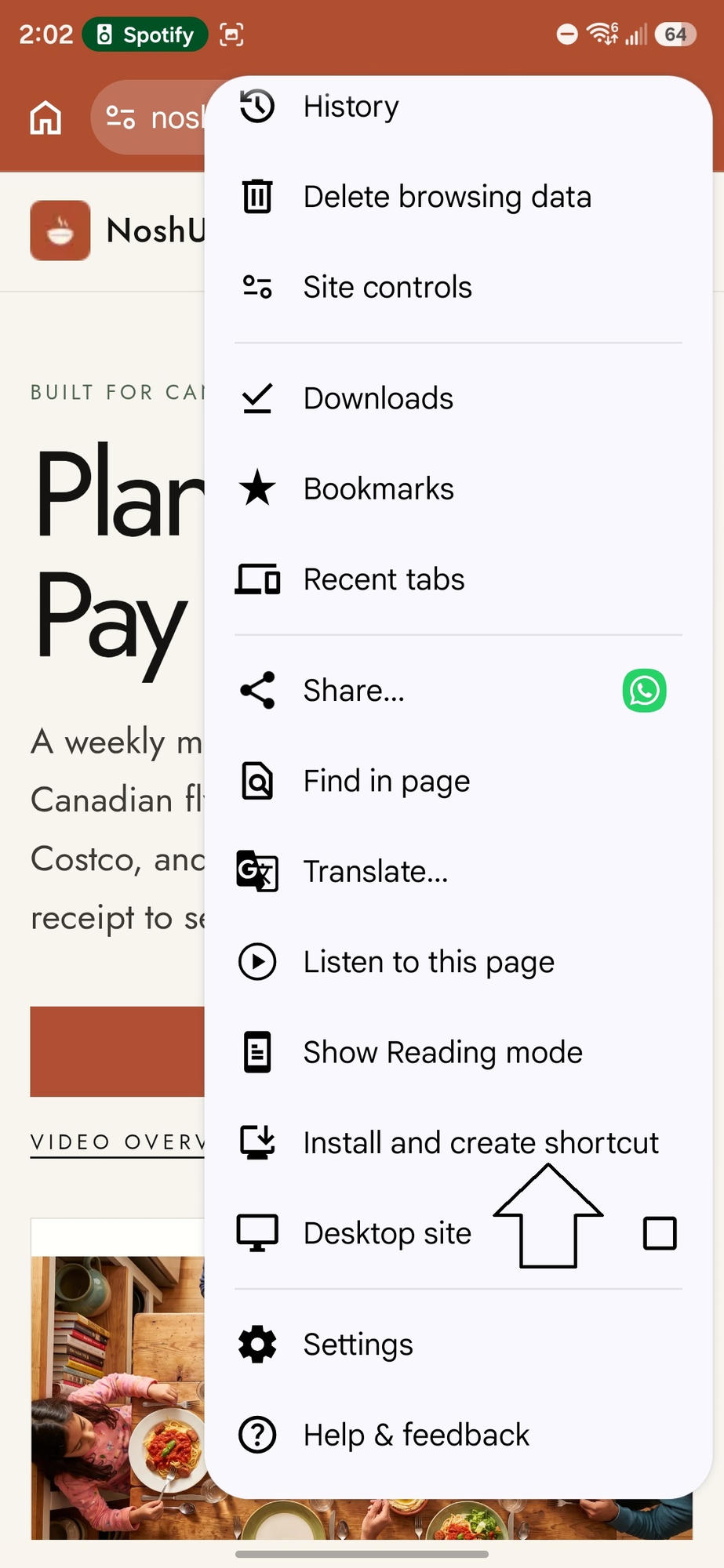
On Android, Chrome offers web-app installation or a Home screen shortcut. On iPhone or iPad, use Share > Add to Home Screen if available, or follow the Safari steps below.
- On Android, open https://noshup.ca in Chrome, not inside another app's built-in browser.
- Open the three-dot menu. Choose Install and create shortcut, Add to Home screen, or Install app, depending on your version.
- Choose Install for a web app, or Create shortcut if that is what Chrome offers. Confirm the browser or Home screen prompt, then open the NoshUp icon.
A shortcut may open a normal browser tab. On iPhone or iPad, do not look for the Android three-dot install flow; use the system Share sheet or Safari.
Edge
On Android, Edge may offer Add to phone or Add to Home screen. Availability and whether this creates a web app or shortcut depend on the version. On iPhone or iPad, the Safari flow below is a reliable alternative.
- Open https://noshup.ca directly in Edge on Android.
- Open Edge's menu and look for Add to phone, Add to Home screen, or Install app.
- If offered, confirm the name and the Add or Install prompt, then open the NoshUp icon. If the option is absent, bookmark the site or open it in Chrome and use the Chrome steps.
On iPhone or iPad, use Share > Add to Home Screen if your Edge version exposes it. Otherwise open the same address in Safari. No Edge mobile screenshot was supplied.
Firefox
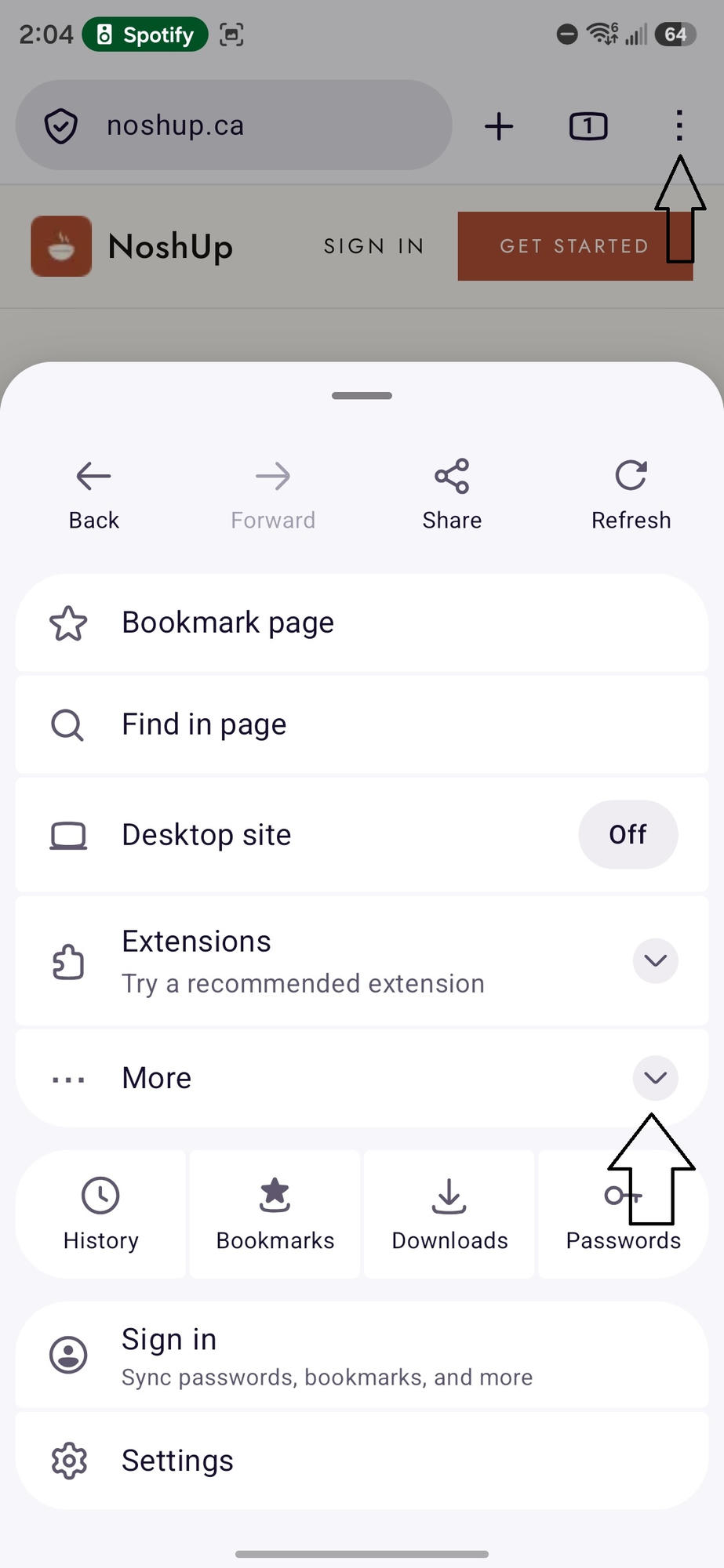
Firefox on Android can add supported web apps to the Home screen. Firefox on iPhone or iPad does not use the Android menu shown here; use Safari if Add to Home Screen is unavailable.
- On Android, open https://noshup.ca in Firefox and tap the three-dot menu.
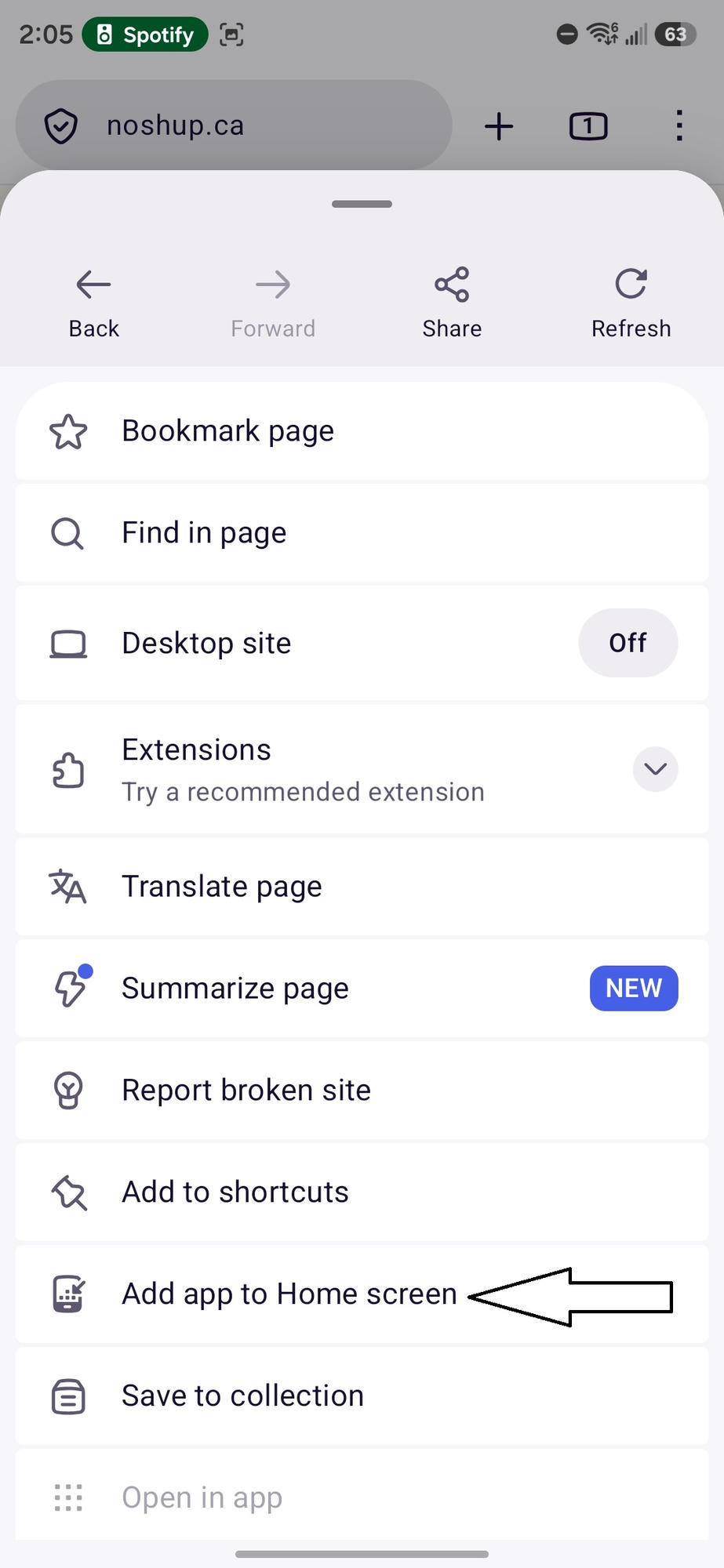
- Expand More if needed, then select Add app to Home screen. Other versions may say Install or Add to Home screen.
- Confirm Add or Install in the next prompt and open the NoshUp Home screen icon.
Add to shortcuts saves a tile inside Firefox. It is not the same as Add app to Home screen.
Safari
Use Safari on iPhone or iPad to add NoshUp to the Home Screen. Safari is not available on Android.
- Open https://noshup.ca in Safari on your iPhone or iPad.
- Tap Share (the square with an upward arrow). Depending on your Safari layout, open More first to find Share.
- Scroll through the Share sheet and tap Add to Home Screen. If it is missing, use Edit Actions to add it.
- Name it NoshUp. Turn on Open as Web App if that switch appears, then tap Add. Open the new icon on your Home Screen.
Older iOS or iPadOS versions may not show the Open as Web App switch. Adding the icon still provides quick access; how it opens depends on the OS version and website.
Illustration, not a screenshot: Safari on iPhone or iPad > Share > Add to Home Screen > Open as Web App, if shown > Add > Open the NoshUp icon.
Samsung Internet
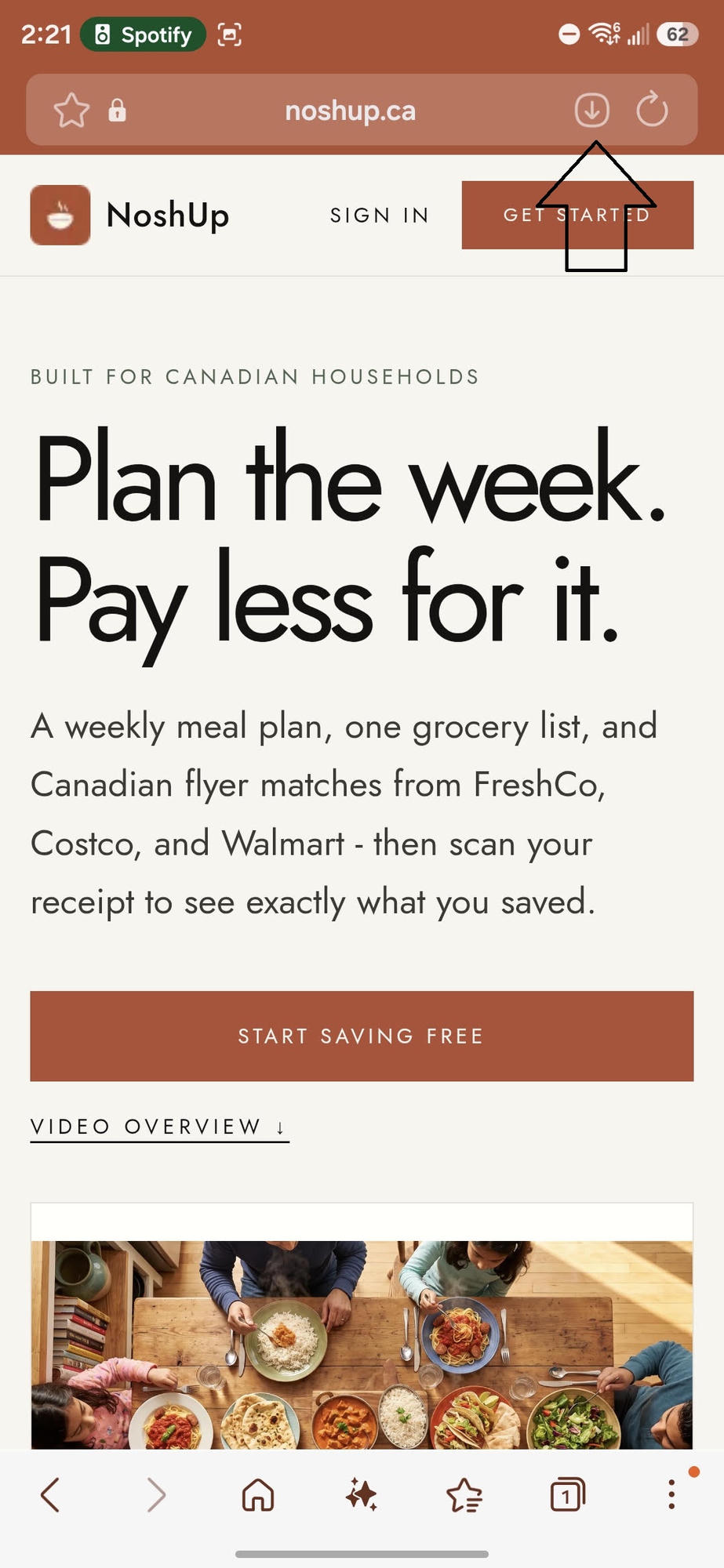
On Android devices with Samsung Internet, use the browser's web-app or Home screen option. This is separate from installing a downloaded APK.
- Open https://noshup.ca in Samsung Internet.
- Tap the install icon beside the address bar if shown. Alternatively, open the browser menu and look for Add page to, then Home screen.
- Confirm the browser's Add or Install prompt, then open the NoshUp icon. If no option is offered, keep using the website or use Chrome.
If a downloaded APK or a Play Protect warning appears, cancel that flow. Do not disable protection or override a warning to use NoshUp on the web.
No install option?
Update your browser and open noshup.ca in a regular tab, not private browsing or a browser inside an email or social app. If it is already installed, look for Open in app or the existing NoshUp icon.
Work or school device policies may prevent installation. Do not override those restrictions. You can always bookmark NoshUp and use it in your browser without installing anything.
On iPhone or iPad, open the address in Safari and follow the Safari instructions above. If you still need help, contact us with your device and browser version.
Official browser help
Guidance checked September 29, 2026. Browser features can change.